Introduction
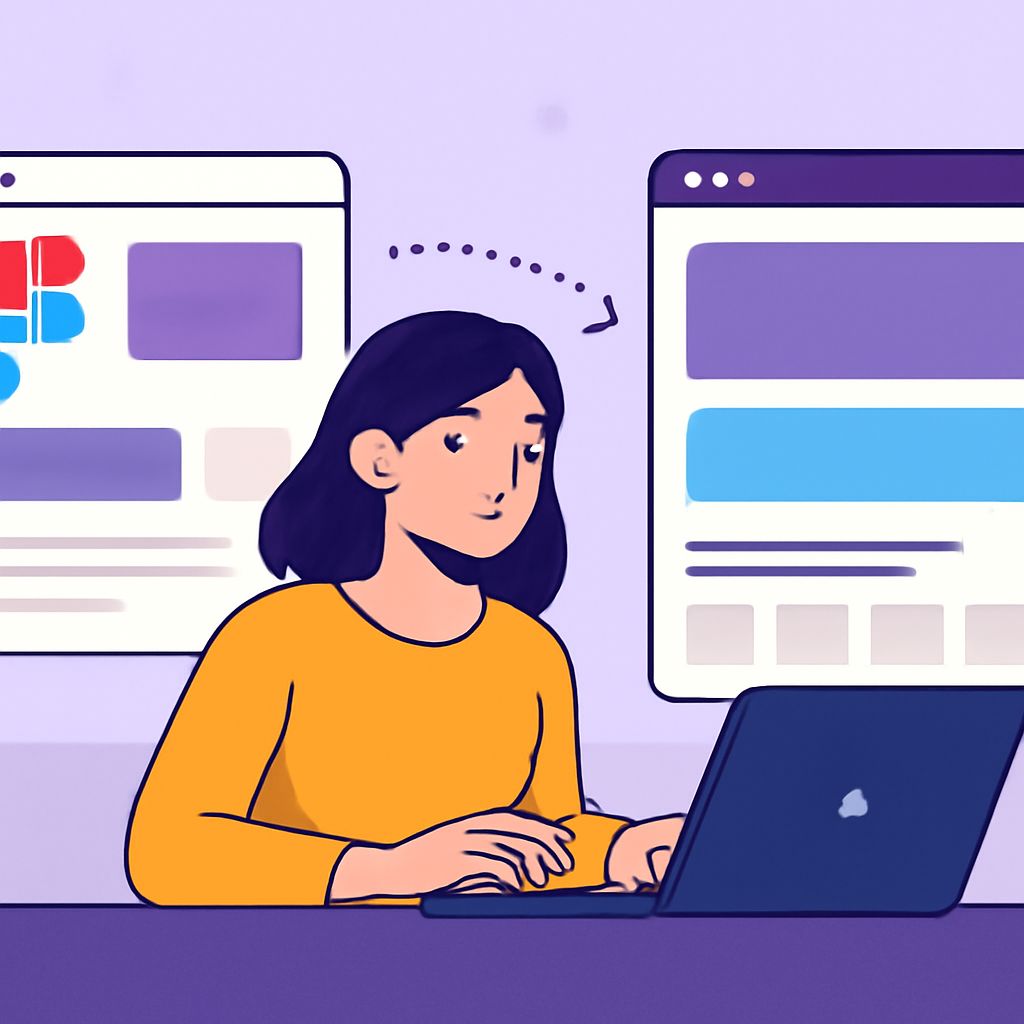
In the ever-evolving world of web design, the ability to transform your Figma prototypes into fully functional websites is a crucial skill for designers and developers alike. As we approach 2025, the processes and tools for achieving this have become more streamlined and efficient. This article will guide you through the steps necessary to take your design from concept to creation, ensuring that your website not only looks stunning but also performs seamlessly across devices.
Transforming your Figma prototype into a stunning website can elevate your design from concept to reality. This process not only brings your creative vision to life but also ensures a seamless user experience. For insights and tips on creating stunning websites, explore the latest techniques that can enhance your project.
Understanding Figma Prototyping
Figma is a powerful design tool that allows you to create interactive prototypes, which serve as a visual blueprint for your website. Prototyping in Figma provides various benefits:
- Collaboration: Figma is cloud-based, allowing real-time collaboration, which is essential when working with teams.
- Interactivity: You can add interactions and transitions, giving stakeholders a feel for the user experience.
- Feedback: Prototypes can be easily shared with clients or team members for feedback, leading to faster iterations.
Key Figma Features for Prototyping
To make the most of Figma’s capabilities, familiarize yourself with the following key features:
- Frames: Organize your design into frames that represent different screens or states.
- Overlays: Create modal windows or tooltips that enhance the user experience.
- Smart Animate: Use this feature to create smooth transitions between frames.
Exporting Your Design from Figma
Once your prototype is ready and you’ve gathered all necessary feedback, it’s time to export your design for development. Figma allows you to export assets in various formats, including PNG, SVG, and PDF. Here’s how to do it:
Exporting Assets
- Select the elements you want to export.
- Click on the ‘Export’ section in the right sidebar.
- Choose the format and size for each asset.
- Click on the ‘Export’ button.
Exporting Styles and Colors
In addition to images, you may need to export color styles, text styles, and other design tokens:
- Use the ‘Styles’ panel to maintain consistency in typography and color throughout your design.
- Export CSS styles directly from Figma which can be a great starting point for your development team.
Choosing the Right Technology Stack
With your designs exported, the next step is to choose the right technology stack for your website. This decision will shape the development process and affect the performance of your site. Here are some popular options for 2025:
| Technology | Description | Use Cases |
|---|---|---|
| React | A JavaScript library for building user interfaces. | Single-page applications, interactive UIs. |
| Vue.js | A progressive JavaScript framework for building UIs. | Dynamic web applications, small to medium projects. |
| Next.js | A React framework for server-side rendering and static site generation. | SEO-friendly websites, performance-focused applications. |
| WordPress | A content management system widely used for blogs and websites. | Content-heavy websites, eCommerce. |
Converting Your Prototype into Code
Now that you have your technology stack in place, it’s time to convert your Figma designs into code. This can be done manually or with the help of various tools:
Manual Conversion
Manual conversion requires coding your designs from scratch. Here are some key points to consider:
- Analyze the exported assets from Figma and organize them in your project directory.
- Write HTML to structure your content.
- Utilize CSS to replicate the styles from your Figma prototype.
- Add JavaScript for interactivity as per your design specifications.
Using Tools for Automation
Several tools can aid in automating the conversion process, making it faster and more efficient:
- Figma to Code: Tools like Figma to React or Figma to HTML can help generate code directly from your designs.
- Plugins: Explore Figma plugins that offer export functionalities, like HTML generator plugins.
Testing and Iteration
Once your website is built, testing is crucial to ensure a seamless user experience. Here’s how to approach testing:
Cross-Browser Testing
Ensure your website performs optimally across different browsers. Tools like BrowserStack can help you test on various platforms.
Responsive Design Testing
Check how your site looks on different devices. You may use tools like Google’s Mobile-Friendly Test to identify any issues with the design’s responsiveness.
User Testing
Gather feedback from real users to identify pain points in the user experience. This will guide you in making necessary adjustments before the final launch.
Deployment
After thorough testing and iteration, it’s time to deploy your website. Choose a reliable hosting solution, and consider using platforms like:
- Vercel: Ideal for React applications.
- Netlify: Great for static sites and JAMstack applications.
- Bluehost: A user-friendly option for WordPress sites.
Conclusion
Transforming your Figma prototype into a stunning website in 2025 requires a combination of design skill, technical knowledge, and strategic planning. By following the steps outlined in this article, including understanding Figma’s prototyping capabilities, selecting the right technology stack, converting designs into code, and testing thoroughly, you can create a website that not only looks attractive but also provides an exceptional user experience. As we look towards the future, staying updated with evolving technologies and trends will be essential for every web designer and developer.
FAQ
How can I turn my Figma prototype into a website in 2025?
You can transform your Figma prototype into a stunning website by using various tools and platforms that support Figma integration, such as Webflow, Framer, or by exporting your design assets to code.
What are the best tools for converting Figma designs to websites?
Some of the best tools for converting Figma designs to websites include Webflow, Framer, Anima, and Figma’s own HTML export feature.
Is coding required to create a website from a Figma prototype?
While some tools allow for no-code solutions, having a basic understanding of HTML, CSS, and JavaScript can enhance your ability to customize and optimize your website.
Can I customize my website after converting it from Figma?
Yes, most platforms allow for customization after conversion, enabling you to tweak layouts, add animations, and optimize performance.
What are the advantages of using Figma for web design?
Figma offers collaborative design features, real-time feedback, vector editing tools, and an extensive plugin ecosystem, making it ideal for web design projects.
How can I ensure my website is responsive after converting from Figma?
To ensure responsiveness, use flexible grid layouts, media queries, and test your site on various devices and screen sizes before launching.