In the world of design and graphics, the ability to transform sketches into vector graphics is a valuable skill. While sketches often serve as the initial framework for creative ideas, vector graphics offer a polished and scalable result that can be used in a variety of digital applications. In this article, we will explore the process of converting hand-drawn sketches into vector format, focusing on the tools and techniques that can help streamline this transformation.
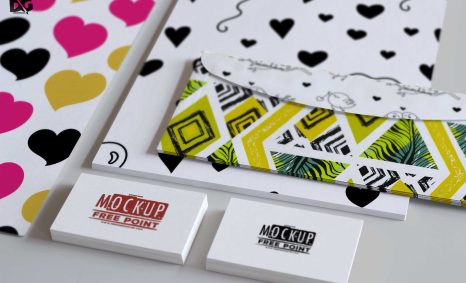
Transforming your sketches into stunning vector graphics not only enhances their visual appeal but also ensures they maintain clarity across various formats. Whether you’re designing a unique business card or exploring creative layouts, utilizing vector graphics allows for unparalleled flexibility and scalability. For inspiration, check out these business card layout ideas to get started on your journey.
Understanding Vector Graphics
Before diving into the transformation process, it is essential to understand what vector graphics are. Unlike raster images that are made up of pixels, vector graphics utilize mathematical equations to create shapes and paths. This allows vector images to be scaled infinitely without losing quality, making them ideal for logos, illustrations, and typography.
Benefits of Vector Graphics
- Scalability: Resize without losing quality.
- Editability: Easily modify shapes and colors.
- File Size: Typically smaller than raster images.
- Print Quality: Retains high quality at any size, perfect for printing.
Tools for Converting Sketches to Vectors
There are several tools available that can assist in the conversion of sketches into vector graphics. Some of the most popular ones are:
- Adobe Illustrator: Industry-standard software for vector graphics.
- CorelDRAW: Another powerful vector illustration tool.
- Inkscape: A free and open-source alternative.
- Affinity Designer: A cost-effective alternative to Adobe Illustrator.
Choosing the Right Tool
When selecting a tool, consider factors such as your budget, the complexity of the design, and your familiarity with the software. For beginners, Inkscape is a great starting point, while professional designers may prefer the extensive features of Adobe Illustrator.
The Conversion Process
The process of converting sketches into vector graphics can be broken down into several steps:
Step 1: Prepare Your Sketch
Start by scanning or photographing your hand-drawn sketch. Ensure good lighting and focus for the best results. Save the image in a high-resolution format (preferably PNG or JPEG).
Step 2: Import the Image
Open your chosen vector graphics software and import the scanned image. For example, in Adobe Illustrator, you can do this by selecting File > Place and choosing your image.
Step 3: Trace the Sketch
Next, you will need to trace over the sketch to create vector paths. This can be done manually or with the help of auto-tracing tools.
Manual Tracing
1. Select the Pencil Tool or Pen Tool to draw over your sketch.
2. Adjust the stroke settings to define the appearance of the lines.
3. Use layers to separate different elements for easier editing.
Auto-Tracing
1. In Adobe Illustrator, select the image and choose Image Trace from the toolbar.
2. Adjust the tracing settings (e.g., threshold, paths, corners) to get the desired look.
3. Click Expand to convert the trace into editable vector paths.
Step 4: Refine Your Vector Graphic
After tracing, review the vector paths and refine them as needed:
- Use the Direct Selection Tool to adjust anchor points and curves.
- Delete any unnecessary paths or elements.
- Modify colors, strokes, and effects to achieve the desired outcome.
Step 5: Save Your Work
Once you are satisfied with the results, save your vector graphic in the appropriate file format:
| File Format | Use Case |
|---|---|
| AI | Adobe Illustrator files for further editing |
| SVG | Scalable Vector Graphics for web use |
| Portable Document Format for printing and sharing | |
| EPS | Encapsulated PostScript for professional printing services |
Tips for Successful Conversions
To ensure a successful transformation from sketch to vector, consider the following tips:
- Keep your original sketch clean and clear; avoid excessive details.
- Use high contrast between the sketch and the background for better tracing results.
- Familiarize yourself with the vector tools in your software for efficient editing.
- Regularly save your work to prevent losing progress.
Examples of Vectorized Sketches
To illustrate the capabilities of converting sketches into vector graphics, let’s explore a few examples:
Logo Design
A hand-drawn logo can be vectorized for use in branding materials. The vector version allows for resizing across various platforms, from business cards to billboards.
Illustrations
Illustrative sketches can gain a professional touch when transformed into vector art, making them suitable for print publications, merchandise, and digital content.
Character Design
Character sketches can be vectorized to create animated characters, which can be used in games and other interactive media.
Conclusion
Transforming sketches into vector graphics is a rewarding process that enhances the usability and appeal of your designs. By understanding the tools available and following a structured approach, you can efficiently create high-quality vector images from your sketches. Whether you are a seasoned designer or a beginner, mastering this skill will elevate your graphic design projects to new heights.
FAQ
What is the best way to transform a sketch into a vector graphic?
The best way to transform a sketch into a vector graphic is to use vector graphic software like Adobe Illustrator or CorelDRAW, where you can trace over your sketch or use the image trace function to convert it automatically.
Can I use free software to convert my sketch to vector?
Yes, there are free software options like Inkscape and Vectr that allow you to import a sketch and convert it into a vector graphic.
What file formats are commonly used for vector graphics?
Common file formats for vector graphics include SVG, AI, and EPS, which are widely supported across various graphic design software.
Is it necessary to scan my sketch before converting it to a vector?
Yes, you should scan your sketch to create a digital version that can be imported into vector graphic software for conversion.
How can I ensure my vector graphic maintains quality after conversion?
To ensure quality, use high-resolution scans of your sketches and carefully adjust the vectorization settings in your software to capture details accurately.
What are the advantages of using vector graphics over raster images?
Vector graphics are resolution-independent, meaning they can be scaled without losing quality, which makes them ideal for logos and illustrations.